
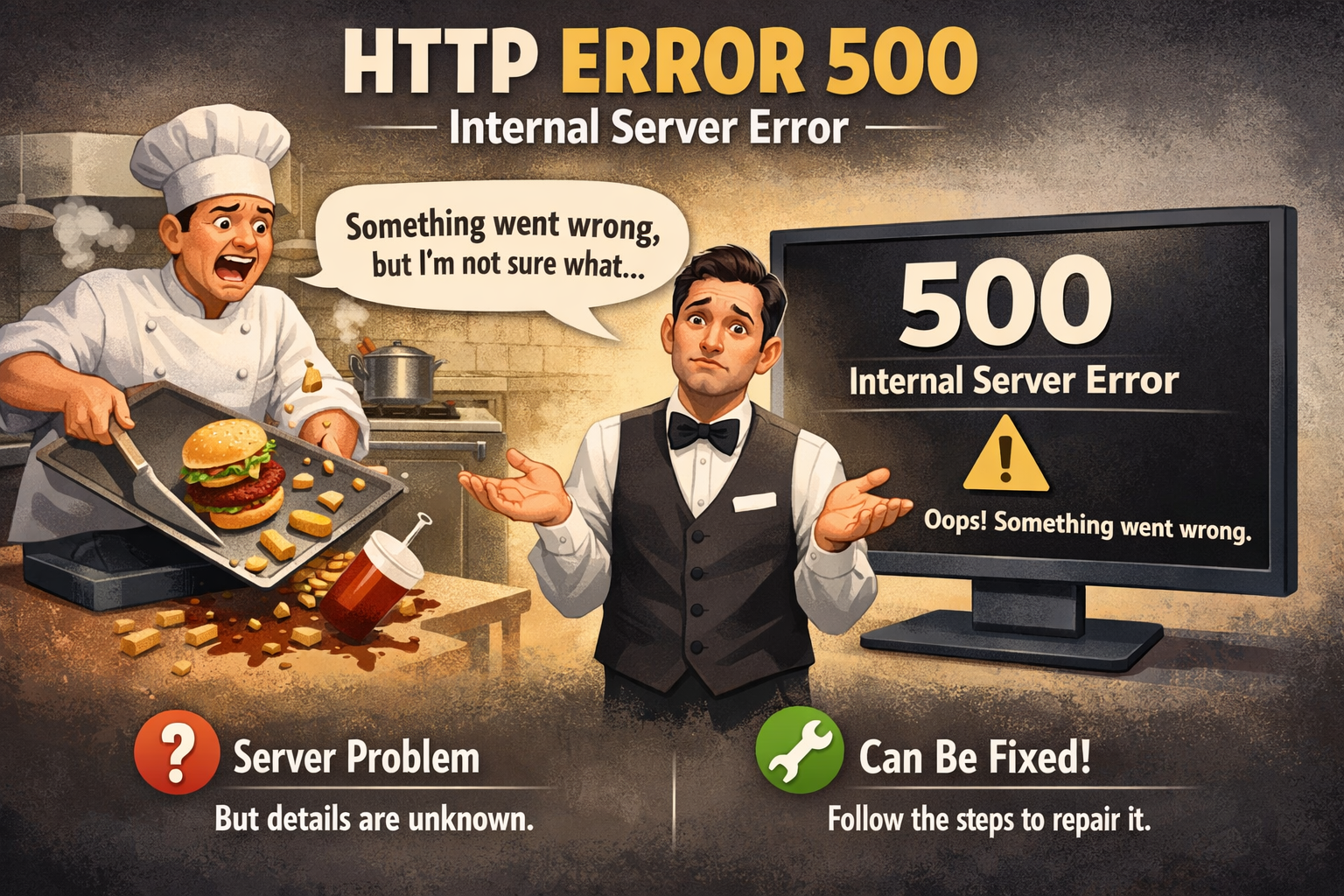
Imagine you go to a restaurant and ask for a burger. The waiter goes to the kitchen, but the chef accidentally drops the tray. The waiter comes back and says, “Something went wrong, but I am not sure what.” That is exactly what an HTTP error 500 is for a website. It is a general message that means the server ran into a problem. It knows it cannot show you the page, but it cannot tell you the specific reason why.
In the tech world, we call this an “Internal Server Error.” It is one of the most common issues people face online. Whether you are a visitor or a site owner, seeing this white screen can be very annoying. However, it is usually something that can be fixed with a few simple checks. Most of the time, the problem lives in the website’s files or the computer hosting the site.
Why Does Your Website Show an Internal Server Error?
There are many reasons why you might see the HTTP error 500 on your screen. One common cause is a broken file in your website’s main folder. Sometimes, a new update for a plugin or a theme goes wrong. Think of it like a puzzle piece that does not fit quite right. When the server tries to read that piece, it gets confused and gives up. This results in the error message you see.
Another reason could be that your server is just too busy. If too many people visit a site at once, the server might get overwhelmed. It is like trying to fit 100 people into a tiny elevator. The system shuts down to stay safe. Sometimes, a tiny mistake in your coding or a “permissions” issue can also trigger the HTTP error 500. Don’t worry, because we will look at how to find these hidden bugs.
Quick Summary of Common Causes
| Issue | What it Means | How Common is it? |
| Corrupt .htaccess | A tiny file with wrong instructions. | Very High |
| PHP Memory Limit | The server ran out of “brain power.” | High |
| Bad Plugins | A new tool is fighting with your site. | Very High |
| Permission Errors | The server isn’t allowed to open a folder. | Medium |
| Theme Issues | Your site’s “skin” has a coding glitch. | Medium |
First Step: Refresh the Page and Wait
Before you get worried about the HTTP error 500, try the easiest trick first. Simply hit the refresh button on your browser. Sometimes, the server just had a tiny hiccup that lasted for a second. It is like a person tripping while walking; they usually get right back up. Waiting a minute or two can often solve the problem without you doing any hard work at all.
You should also try to clear your browser cache. Sometimes your computer “remembers” the error even after the website is fixed. If you check the site on your phone and it works, but your computer shows the HTTP error 500, then your browser is the problem. This simple step saves a lot of time and prevents you from changing settings that don’t need to be changed. Always try the “reboot” method first!
Check Your Server Logs for Clues
If refreshing didn’t work, you need to become a digital detective. Every server keeps a diary called an “error log.” This log records every time something goes wrong. If you look at these files, you might see the HTTP error 500 listed with a specific reason. It might say a specific line of code is broken. This is much better than guessing what went wrong in the dark.
You can usually find these logs in your hosting control panel. If you use WordPress, you can turn on a special “debug” mode. This makes the website tell you exactly what is hurting its feelings. Instead of a blank screen with an HTTP error 500, you might see a message about a specific plugin. Knowing exactly where the fire is makes it much easier to put it out.
Fix Your Broken .htaccess File
The .htaccess file is like a traffic cop for your website. It tells the server how to handle links and security. If there is a typo in this file, the server will panic and show the HTTP error 500. This is one of the most frequent causes for this error. To fix it, you can rename the file to something like “.htaccess_old” using an FTP program or your file manager.
After you rename it, try to load your website again. If the site works, you have found the culprit! You can then go into your website settings and save your “Permalinks” to create a fresh, clean version of the file. This simple reset clears out any bad instructions that were causing the HTTP error 500. It is a very safe way to test for problems without losing any of your hard work.
Increase Your PHP Memory Limit
Your website needs “brain power” to run, which we call PHP memory. If your site is trying to do a big task, it might run out of this memory. When it hits the limit, the server stops working and displays the HTTP error 500. This often happens when you use a lot of heavy plugins or high-quality images. It is like trying to run a marathon without drinking any water.
You can fix this by asking your hosting company to give you more memory. You can also try to add a simple line of code to your settings file yourself. By bumping the limit up to 256MB or 512MB, you give your site the room it needs to breathe. If the HTTP error 500 goes away after this, you know your site was just feeling a bit “crowded.”
Deactivate New Plugins and Themes
Plugins are great tools, but sometimes they don’t play nice with each other. If you just installed a new tool and suddenly see the HTTP error 500, that tool is likely the problem. You should try turning off all your plugins at once. If the site comes back to life, you can turn them back on one by one. This helps you spot exactly which one is causing the fight.
The same thing can happen with your website theme. If the code in your theme is old or has a mistake, the server will trigger the HTTP error 500. Try switching to a default theme like “Twenty Twenty-Four” to see if that fixes it. I once spent three hours looking for a big bug, only to find out it was a tiny “social media” plugin causing the whole mess. Always check your newest additions first!
Check File and Folder Permissions
Servers are very strict about who can touch certain files. If the “permissions” are set incorrectly, the server might block itself from reading its own files. This security measure can accidentally cause an HTTP error 500. Usually, folders should be set to “755” and files should be “644.” If these numbers are different, the server gets confused and shuts the door.
You can check these numbers using an FTP tool like FileZilla. It might sound technical, but it is just like making sure the right keys are in the right locks. Correcting a “777” permission (which is too open) to a safer number can often resolve the HTTP error 500 instantly. Keeping your files organized and secure is a great way to make sure your website stays healthy and happy for your visitors.
Contact Your Hosting Provider
Sometimes, the problem is not your fault at all. The computer where your website lives (the server) might be having a bad day. If you have tried everything and still see the HTTP error 500, it is time to call for backup. Contact your hosting provider’s support team. They can look at things that you cannot see from your end. They have special tools to fix deep system issues.
A good hosting company will be happy to help you find the source of the HTTP error 500. They might find that the server software needs an update or that there is a hardware problem. Don’t be afraid to ask for help! I have found that most support teams can fix an internal server error in just a few minutes. It is much better than stressing out and staring at a blank screen for hours.
How to Prevent Future Server Errors
Once you fix the HTTP error 500, you want to make sure it never comes back. The best way to do this is by keeping your website clean. Delete any plugins or themes that you are not using. Run updates regularly so that your code stays fresh. Think of it like changing the oil in a car. If you take care of the engine, the car will run smoothly for a long time.
Also, consider using a high-quality hosting service. Cheap hosting often puts too many websites on one server, which leads to more cases of the HTTP error 500. Investing a little more in a “Managed” host can save you a lot of headaches later. Always keep a backup of your site too! If things ever break again, you can just click a button and go back to a time when everything worked perfectly.
Frequently Asked Questions
1. Is the HTTP error 500 bad for my SEO?
Yes, if it stays broken for a long time. Google wants to send people to working websites. If their “bot” sees an HTTP error 500 for many days, it might lower your ranking. Fix it fast to stay safe!
2. Can a virus cause an internal server error?
It is possible. If a hacker puts bad code on your site, it can break the server’s instructions. If you see the HTTP error 500 out of nowhere, it is a good idea to run a security scan.
3. Why do I only see the error on one page?
This usually means that one specific file or image on that page is broken. It could be a shortcode that isn’t working or a very large image that the server can’t load.
4. Does the HTTP error 500 mean my data is lost?
No, your data is usually very safe. The error just means the “door” to the data is stuck. Once you fix the code or server issue, everything will be exactly where you left it.
5. What is the difference between a 404 and a 500 error?
A 404 error means the page is missing (like a wrong address). An HTTP error 500 means the page is there, but the server is having a “brain freeze” and can’t show it to you.
6. Can I fix an HTTP error 500 without coding?
Yes! Most of the time, you can fix it by just clicking “deactivate” on a plugin or clicking “save” on your settings. You don’t need to be a computer scientist to fix most site errors.
Conclusion
Dealing with an HTTP error 500 can feel scary, but it is just a normal part of running a website. Most of the time, it is caused by a simple mistake in a file or a plugin that needs an update. By following the steps in this guide, you can find the problem and get your site back online quickly. Remember to stay calm, check your logs, and don’t be afraid to ask your host for a helping hand.
Now that you know how to handle an internal server error, why not check your site’s health? Go through your plugins and delete the ones you don’t need. A clean site is a fast and happy site! If this guide helped you fix your HTTP error 500, feel free to share it with a friend who might be struggling with their own website glitches today.
